DHV Series - How-To Guide
The clock is not broken. It is sitting on the time zone of the factory that tested it.
A new head unit keeps whatever time zone it was set to before it left the bench, and it stays there until somebody changes it. Two rows on the Date and time page bring the clock back to your local time, and they take about a minute.
0:31 - the whole path from the wrong clock on the home screen to the corrected time, filmed on one bench unit. Open the clip on YouTube if the embed is blocked.
Note: As our products are continuously upgraded, the interface on your unit may look slightly different. Please select the corresponding function according to your own model.
Quick answer
Open Settings, then Date and time. Tap Time zone, tap Region, pick the country you drive in, then pick the city that matches your GMT offset in the list that follows. The clock changes the moment you tap the city. No restart, no save button, and the 24-hour format is a separate row underneath.
Almost every clock complaint we get after an installation is not a clock fault. The unit is keeping time perfectly well, it is just keeping somebody else's time. On the bench it was tested in a factory that sits on one time zone, so that zone was left in the settings, and a car in another country inherits it.
The giveaway is the size of the error. A clock that drifts a minute a week has a battery or oscillator problem. A clock that is exactly two, three, five and a half or thirteen hours out has a time zone problem, and the fix is a setting rather than a part.
The home screen below is the one used for this guide. The large clock reads 15:24 with the date underneath as Wednesday 06.11.2024, while the same time is repeated in the status bar at the top right. If your clock is out by a fixed number of hours, your screen looks like this with a different number in it.
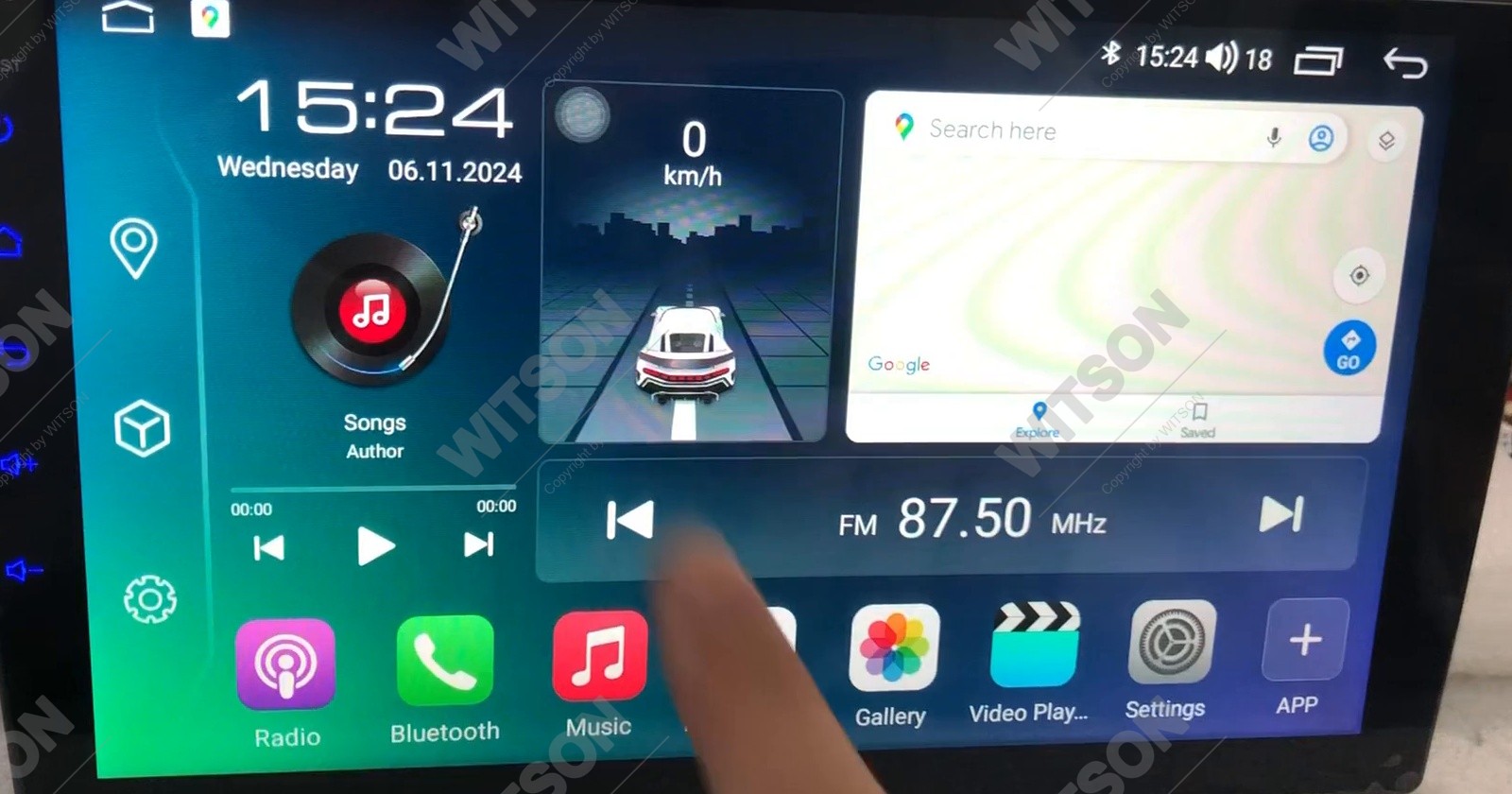
There is one case where the zone is right and the time is still wrong: the unit has no network and no GPS fix, and nothing has corrected it since the battery was last disconnected. That case is covered in section 06, because the rows to look at are different.
Everything on this page lives under one heading, Date & time, and the page is short: two switches, two values, and a format block at the bottom. Read it top to bottom once and the rest of the guide is just tapping.
Use network-provided time is the first switch. Green means the unit takes the actual time from the network when it has a connection, and grey means you set the clock by hand. Date and Time sit directly under it and are greyed out while the first switch is on, because there is nothing for you to type.
Use network-provided time zone is the second switch, and this is the one that decides whether your zone is picked automatically or fixed by you. Under it, Time zone shows the zone currently in force, written as an offset plus a name, for example GMT+08:00 China Standard Time. In the units we ship, the offset is the part to trust; the name is cosmetic.
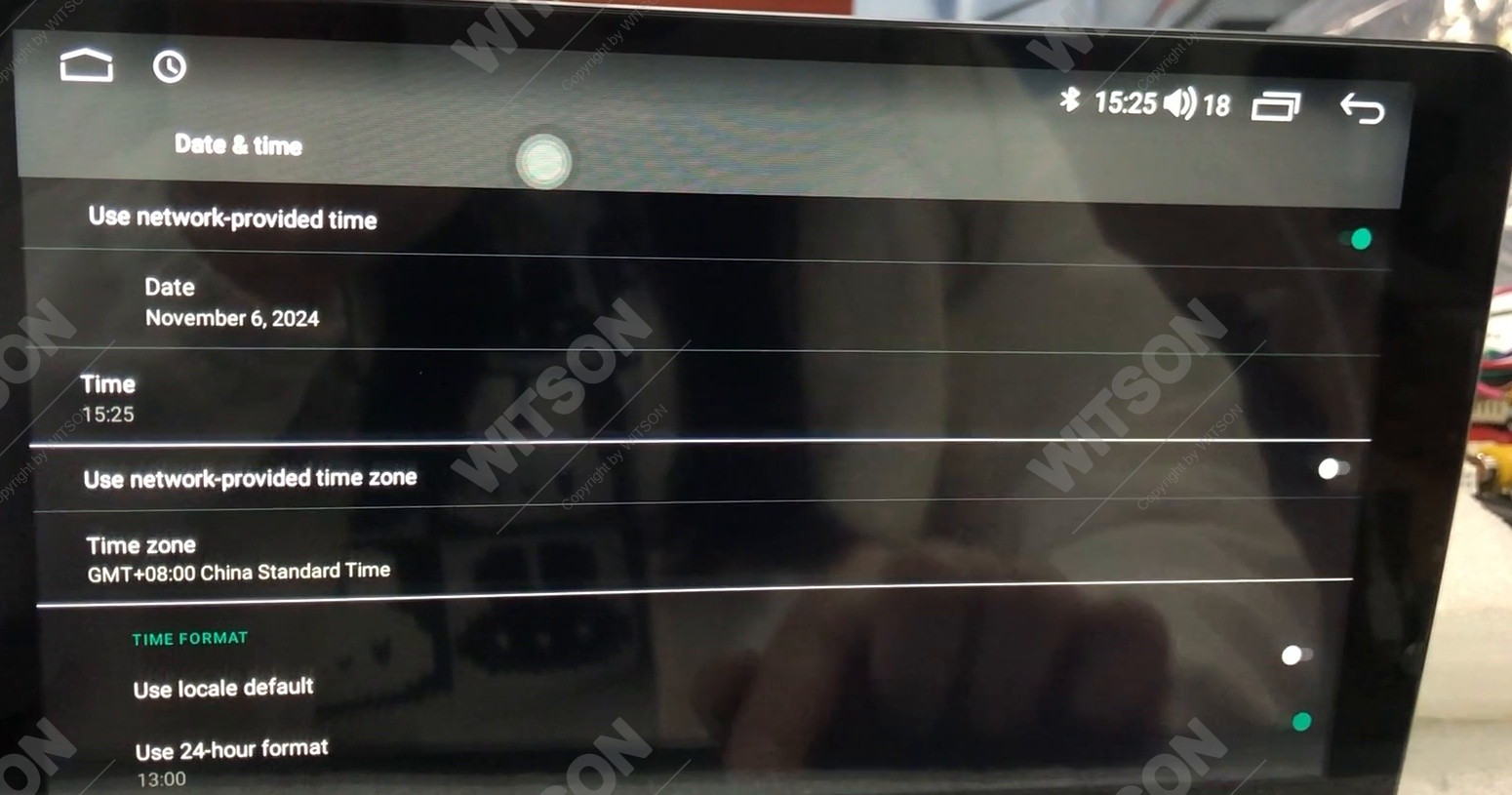
The bottom block, TIME FORMAT, has nothing to do with the time being wrong. Use locale default follows the region, Use 24-hour format forces a 24-hour clock and shows a sample of 13:00 next to it. Section 05 deals with it so you do not confuse it with the zone.
One more thing worth knowing before you tap: on this page a green dot on the right is ON and a plain white dot is OFF. A white dot on the second switch is normal for a unit that has been set up by hand, and it is not a fault.
Tap the gear icon in the dock at the bottom of the home screen. The settings app opens; the entry you want is Date & time, the page with the clock icon beside the title. If your unit opens on a list of pages instead and you cannot see that entry, jump to the note at the end of section 06 rather than guessing.
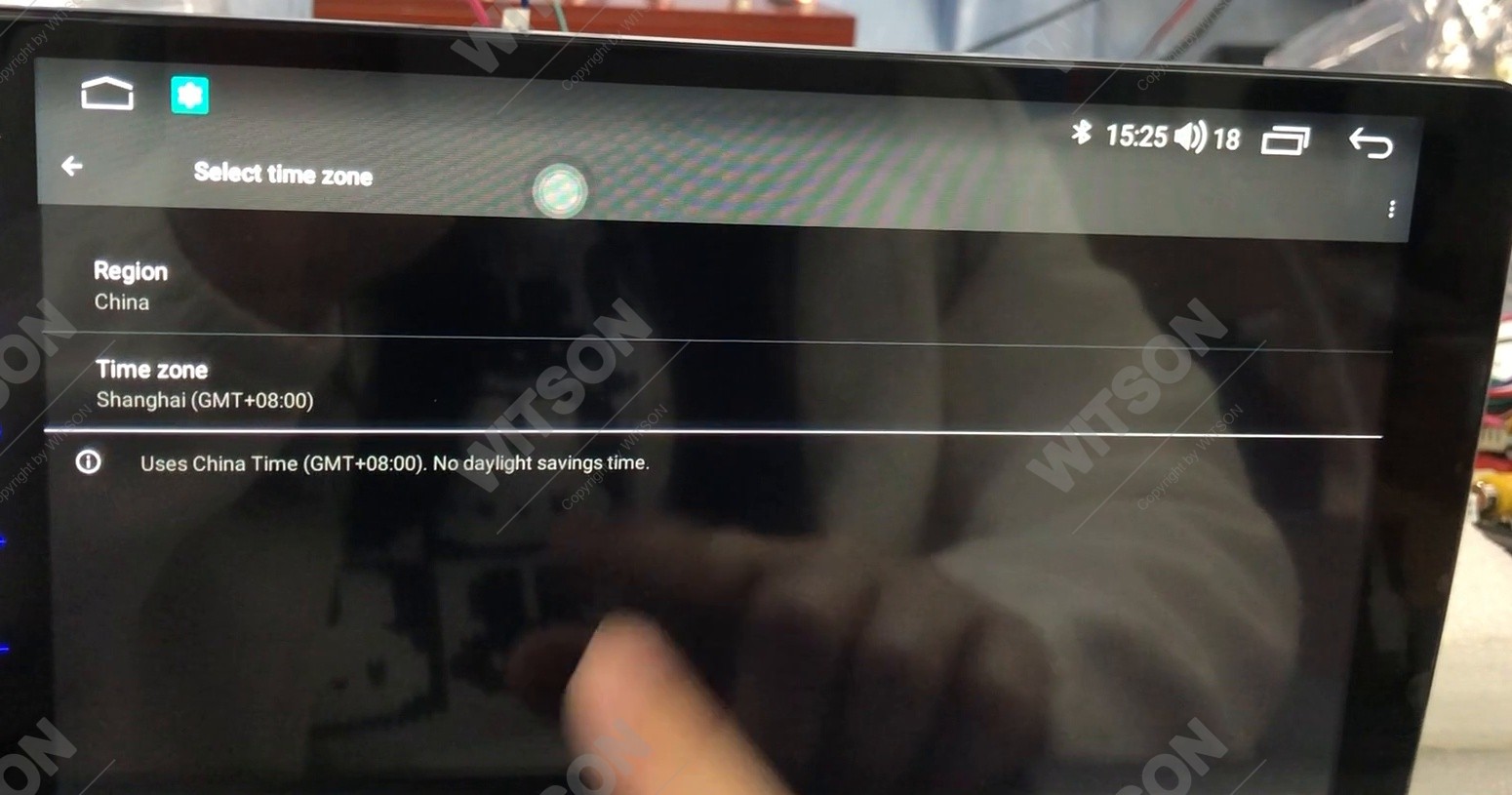
Tap Time zone, the row that currently reads GMT+08:00 China Standard Time on our bench unit. It opens a page titled Select time zone with two rows of its own: Region and Time zone, and a line of small print underneath that reads Uses China Time (GMT+08:00): No daylight savings time. That small print is a real, working hint: it changes to match whatever you pick.
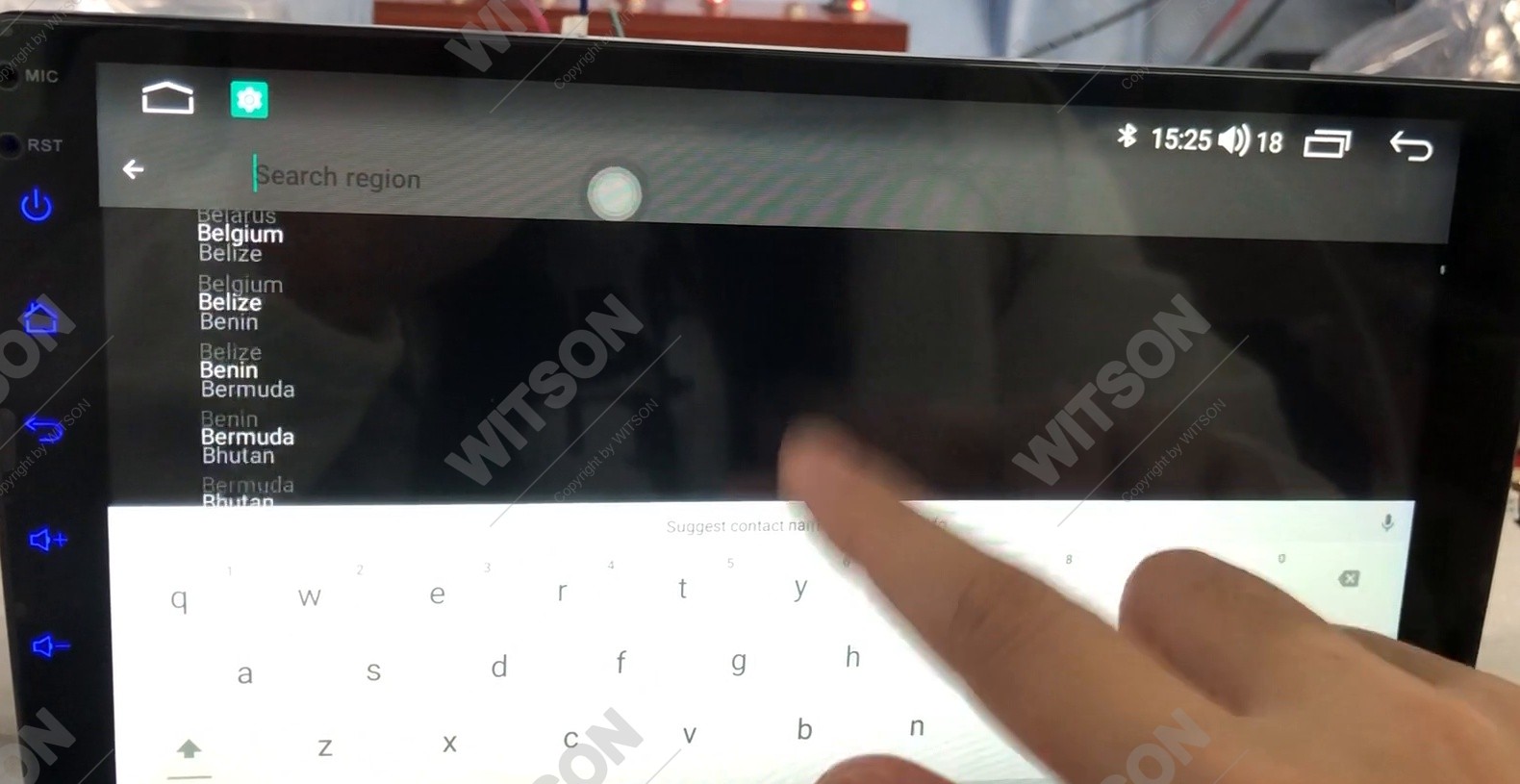
Tap Region. The full country list opens on a page headed Search region, with a text field at the top and a keyboard on the lower half. Typing two or three letters is much faster than scrolling: typing a b on our unit narrowed the list to Botswana, Brazil, British Indian Ocean Territory and British Virgin Islands.
Choosing a country opens its city list, headed Time zone with the country name in green above it. Every row carries two pieces of information: the offset in brackets after the time zone name, and the current local time on the right, in the format used by the unit.
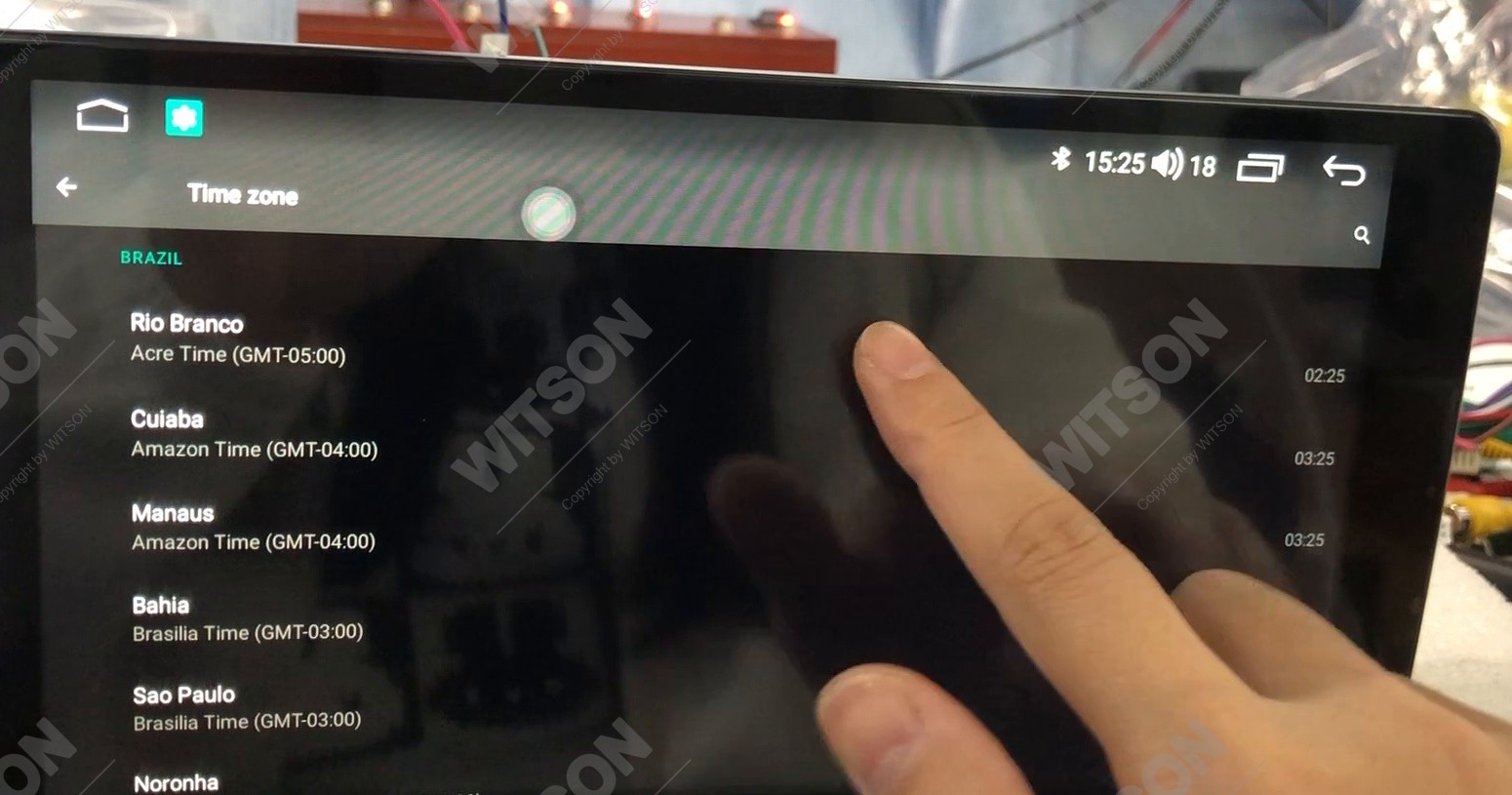
Tap the city once. The unit returns to Select time zone with Region and Time zone both updated and the small print rewritten from the new zone, and the status bar clock has already moved. Go back one page and the Date and time page shows the new Time and the new offset. Nothing is saved with a button, and nothing needs a restart.
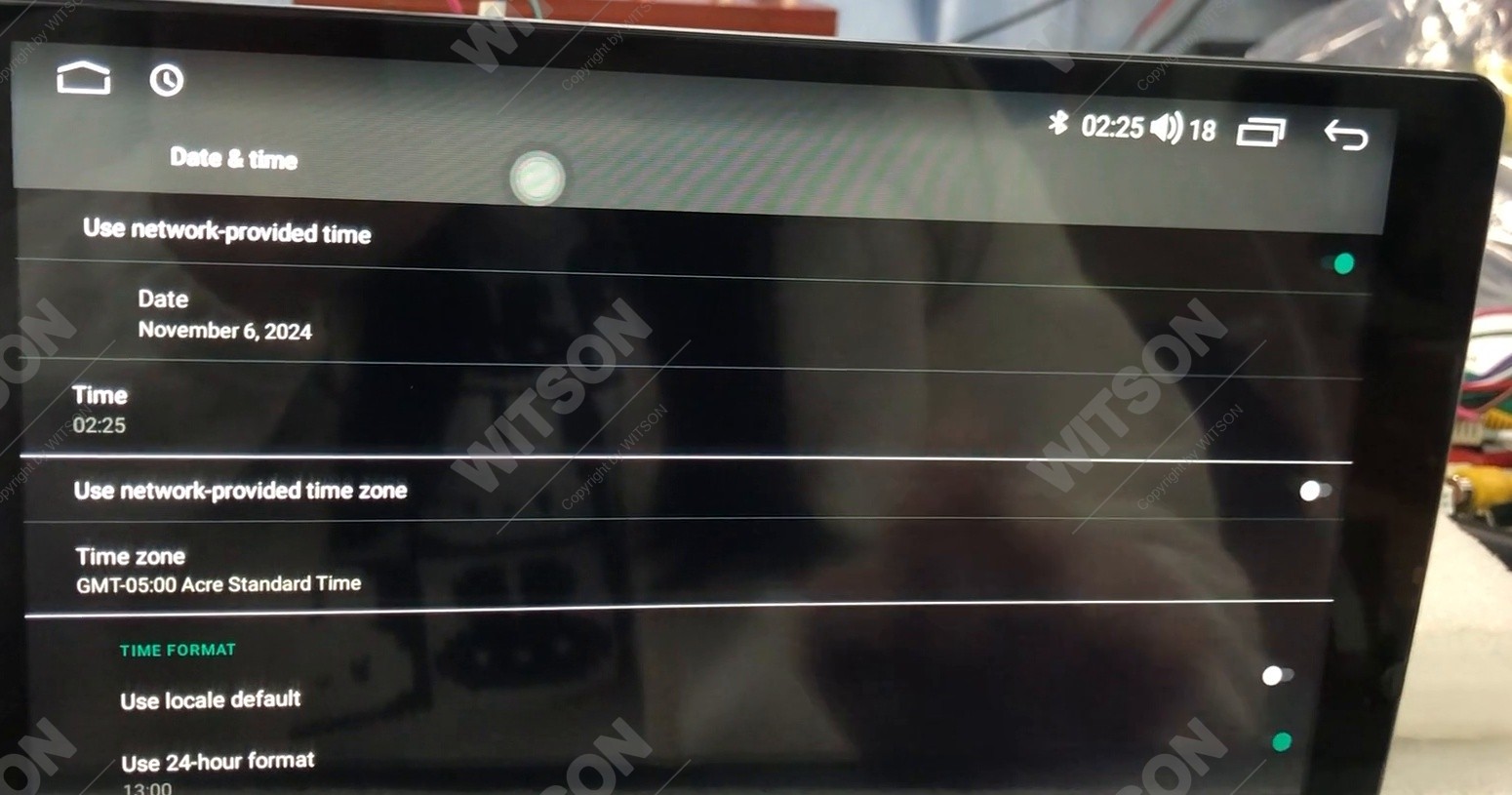
The right-hand column of the city list is the part most people ignore, and it is the part that makes the choice quick. Those numbers are the time in that city at that moment, not an example and not a fixed value. If your local time is 15:25 and a row shows 02:25, that city is thirteen hours behind you, and picking it is exactly how a unit ends up half a day out.
Our bench recording deliberately picks Brazil to make the effect visible. Before the tap the page reads 15:25 with GMT+08:00 China Standard Time; after it, the same page reads 02:25 with GMT-05:00 Acre Standard Time. That jump of thirteen hours is not a bug, a drift or a battery problem, it is the offset doing its job. Choose your own country and city and you get the same clean jump, in the direction you want.
Two habits avoid most of the repeat calls. First, set the region before the city, because the city list is built from the country and a wrong country hides the right city. Second, do not stop at the country level: Brazil, the United States, Australia, Russia and Canada all cover several offsets, so the country alone cannot fix a clock.
If you have just installed the unit and the clock is right in the workshop but wrong in the car, the zone was probably inherited from the bench and the car sits in a different region. Set it once in the car and it stays, because the value is stored rather than recalculated at every start.
The block at the bottom of the Date and time page only changes how the time is written, never which time is written. Use locale default takes the format from the region you just picked; Use 24-hour format forces a 24-hour clock and previews it as 13:00 on the same line. Both are safe to change at any time and neither touches the offset.
The format follows the whole system. The status bar clock at the top right, the small clock widget on the launcher and the clock in the radio and media screens are all drawn from the same value, so changing it once changes all of them. If a customer says the clock is right on one screen and wrong on another, that is not possible on these units and the real difference is usually the date, not the time.
The date line under the clock behaves the same way. It is written in the day-month-year order used by the region, which is why a unit set to a European region shows 06.11.2024 while the same day appears as November 6, 2024 on the Date row inside settings. Both describe the same day and neither can be edited separately.
If the zone now matches your country and the clock is still out, the cause has moved somewhere else. Work down these in order rather than changing several settings at once.
The offset is right and the minutes are wrong. That is the clock itself needing a source. Leave Use network-provided time on and give the unit a data connection, either through a phone hotspot on the Wlan page or a SIM if the unit has one. The clock corrects as soon as the connection is up.
The clock is wrong after the battery was disconnected. A unit that has lost power for a long period starts from its last stored value and waits for a source. Give it a few minutes with a GPS fix outdoors, or switch the network time on once; it will not correct itself in a garage with no signal.
The clock is right and the date is a day out. Check the Region first, then the daylight saving note on the Select time zone page. A zone that does not use daylight saving keeps the same offset all year, and the small print under the rows tells you which kind you are on.
The unit went back to the old time after a reset. A factory reset restores the shipped values, including the zone. Repeat section 03 afterwards; this is expected, and it is the same reason the car-specific settings need redoing: see the CAN box and protocol guide, the driver door side guide and the boot behaviour guide.
There is no Date and time entry in your settings. Do not go looking in the factory menu for it, and do not guess at a page name. Send us the model, the firmware version from the System page, and a photo of the settings page your unit opens on; we will point at the exact row for that build. The same applies if the page exists but the Time zone row is greyed out: that combination means the zone is being forced from somewhere else and is worth a photo rather than an experiment.
| What you notice | Cause | What to do |
|---|---|---|
| Out by exactly 2, 3 or 5.5 hours | Wrong time zone, inherited from the bench | Date and time, Time zone, set Region then the city. |
| Out by 12 or 13 hours, date looks right | A zone on the other side of the world | Set the city that matches your GMT offset, not just the country. |
| Right in the workshop, wrong in the car | Zone never changed after fitting | Set the zone once in the car; the value is stored. |
| Offset correct, minutes wrong | No network and no GPS fix yet | Connect a hotspot or fit a SIM, keep network time on. |
| Wrong again after the battery was off | Unit restarted from its stored value | Wait for a GPS fix outdoors, or switch network time on. |
| Clock right, date one day out | Region or daylight saving setting | Read the note at the bottom of the Select time zone page. |
| Back to the old zone after a reset | Factory reset restores shipped values | Repeat step 2 to step 5 after the reset. |
Because it is keeping the time of another zone. A clock fault shows up as drift, a few seconds a day, and it wanders. An error that is exactly an offset, and that stays exactly that size, comes from the zone setting. Set the region and the city on the Date and time page and the error disappears in one step.
No. Date and time is a user page, reached from the settings app on the home screen, and nothing on it asks for a code. If somebody told you to go into the factory list to change the clock, that is a different menu and not the one that holds the zone.
Because that is what the offset does. The unit was on GMT+08:00 and the city you picked was on GMT-05:00, so the same moment is written thirteen hours earlier. Nothing was damaged and nothing was lost, and picking your own city moves it back by the same amount.
No. The clock moves while you are still on the page, and the status bar updates with it. There is no save button on this page, and a restart will not undo the change either, because the value is already written. The only thing that sends it back is a factory reset.
Yes, if the unit has a data connection. With it on, the clock is corrected from the network and you never touch the minute. With it off, the unit runs on its own and you set the time by hand. The zone switch is separate and worth leaving off once you have set your city, so a network never moves you back.
Reference
Zone already matches your country and the clock is still out, or your unit has no Date and time entry at all? Send us the model, the firmware version and a photo of the page your unit opens on.
Ask WITSON SupportMore in the WITSON how-to guides, including the boot behaviour guide and the launcher and home screen guide.